
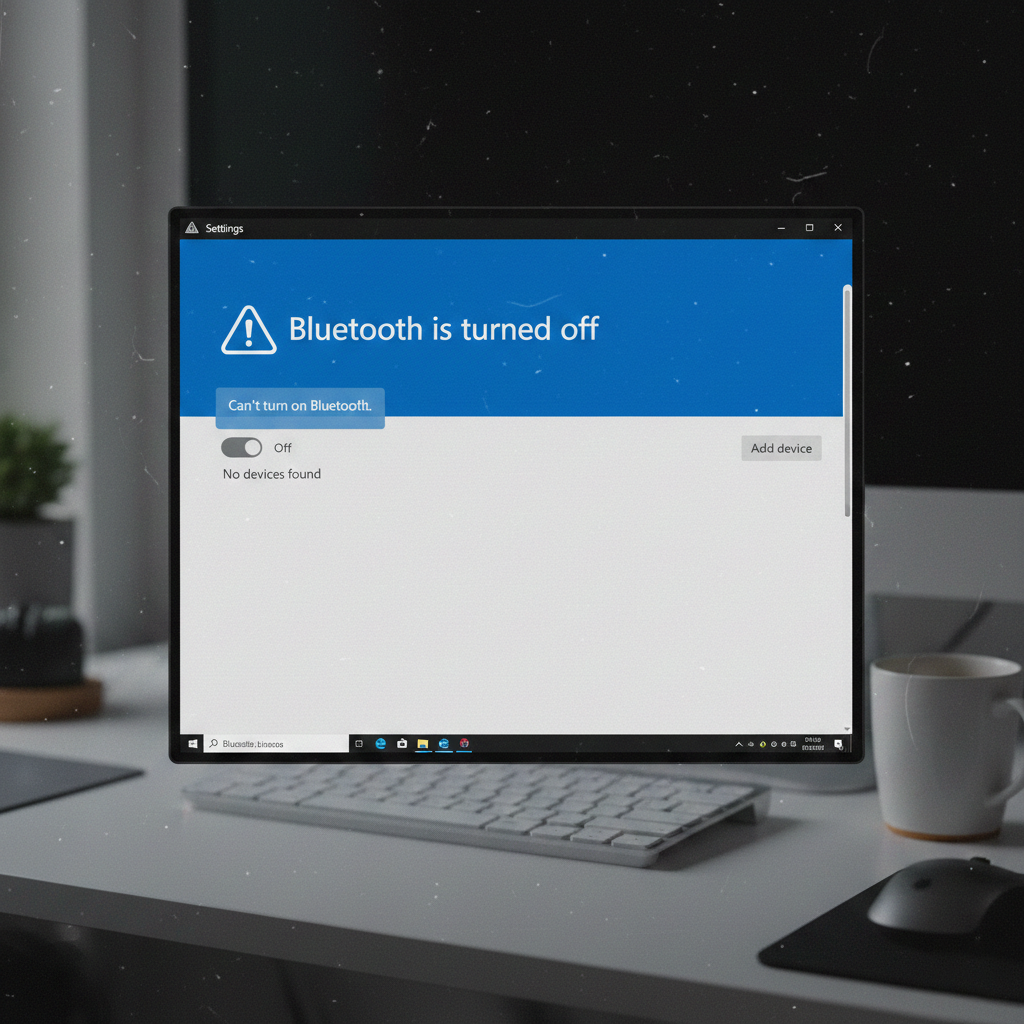
Bluetooth not working on Windows 11 can be frustrating, especially when your mouse, keyboard, or headphones suddenly stop connecting. This guide walks you through the most effective ways to fix Bluetooth issues step by step.
Why Bluetooth Stops Working on Windows 11
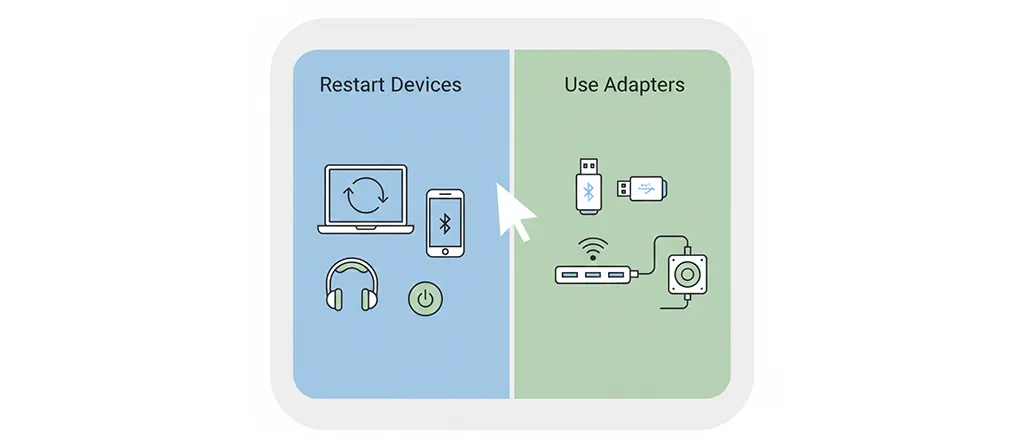
Bluetooth issues on Windows 11 usually happen due to:
- Disabled Bluetooth settings
- Outdated or corrupted drivers
- Windows update conflicts
- Power management restrictions
Understanding the cause helps you fix the problem faster.
How to Fix Bluetooth Not Working on Windows 11
Step 1: Check Bluetooth Is Turned On
- Press Windows + I to open Settings
- Go to Bluetooth & devices
- Make sure Bluetooth is switched On
Step 2: Restart Bluetooth Services
- Press Windows + R, type
services.msc, and press Enter - Find Bluetooth Support Service
- Right-click → Restart
- Set Startup type to Automatic
Step 3: Update Bluetooth Drivers
- Right-click the Start menu → Device Manager
- Expand Bluetooth
- Right-click your Bluetooth device → Update driver
- Select Search automatically for drivers
Step 4: Disable Power Saving for Bluetooth
- Open Device Manager
- Right-click your Bluetooth device → Properties
- Go to Power Management tab
- Uncheck Allow the computer to turn off this device to save power
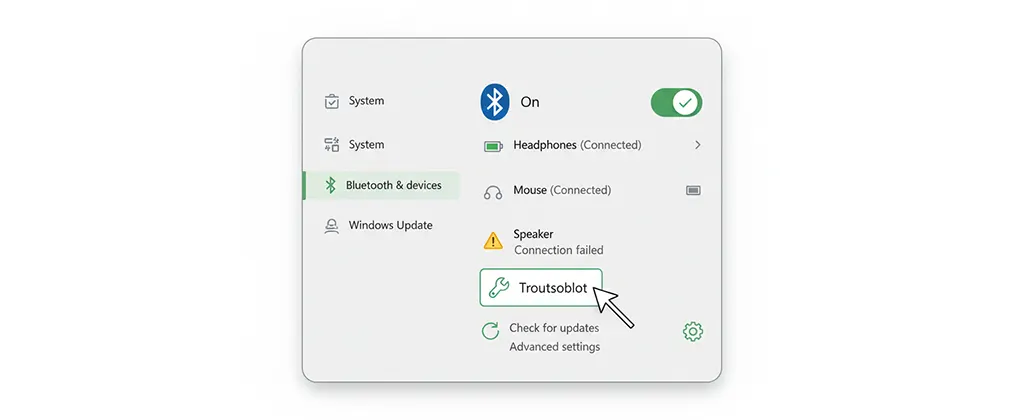
Step 5: Run Bluetooth Troubleshooter
- Open Settings → System → Troubleshoot
- Select Other troubleshooters
- Run the Bluetooth troubleshooter
Alternative Solutions If Bluetooth Still Doesn’t Work
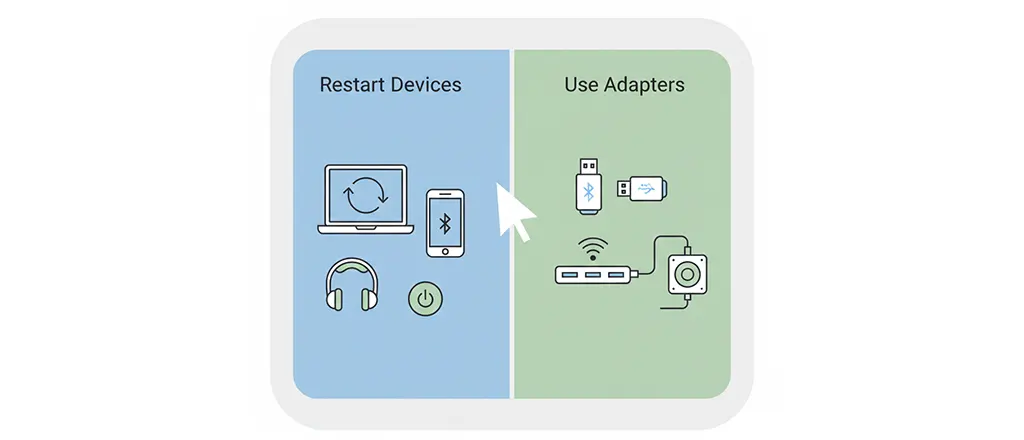
- Restart your PC
- Remove and re-pair the Bluetooth device
- Install optional Windows updates
- Use a USB Bluetooth adapter as a temporary fix
FAQ
Why does Bluetooth disappear from Windows 11?
This often happens due to driver issues or disabled Bluetooth services.
Does Windows 11 have Bluetooth problems?
Some users experience Bluetooth issues after updates, but they are usually fixable.
Should I reinstall Windows 11 to fix Bluetooth?
No. Reinstalling Windows should be the last option after trying all fixes.
Conclusion
Bluetooth issues on Windows 11 are common but usually easy to fix. Follow the steps above to restore your connection quickly.
For more troubleshooting tips, check our Windows 11 troubleshooting guide.
Leave a Reply
You must be logged in to post a comment.