
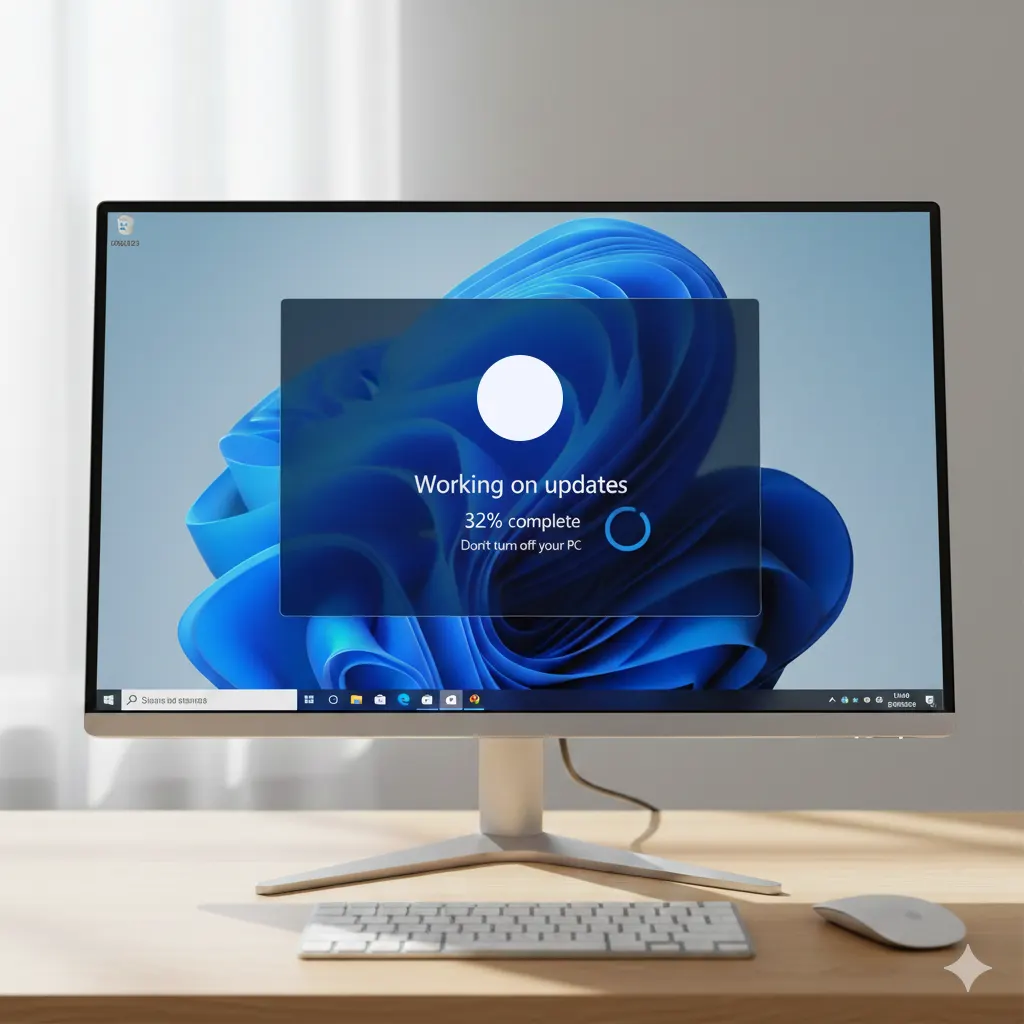
Windows Update stuck at 0 percent can be confusing, especially when your computer appears to be doing nothing for a long time. This problem usually has simple causes, and in most cases, you can fix it without reinstalling Windows.
Why Windows Update Gets Stuck at 0 Percent
Windows Update may freeze at 0 percent due to:
- Slow or unstable internet connection
- Corrupted update cache
- Background services not running
- Insufficient disk space
- Temporary system glitches
Understanding the cause makes troubleshooting much faster.
How to Fix Window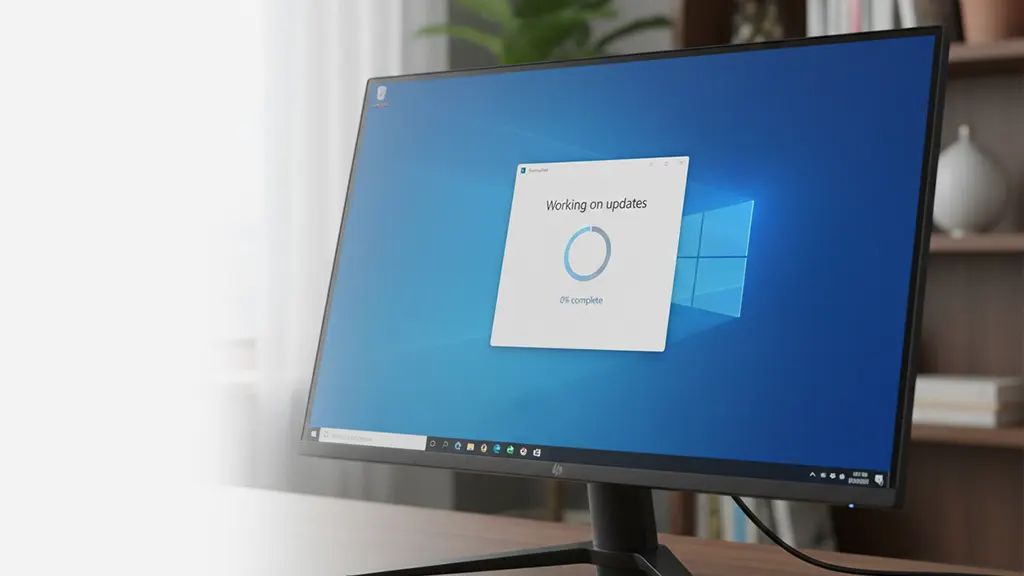 s Update Stuck at 0 Percent
Step 1: Wait at Least 10–15 Minutes
At 0 percent, Windows is often preparing files in the background.
- Make sure your PC is connected to power
- Avoid restarting immediately
If nothing changes after 15 minutes, move to the next step.
Step 2: Restart Your Computer
- Click Start → Power → Restart
- Let Windows boot normally
- Try running Windows Update again
This clears temporary system issues.
Step 3: Check Your Internet Connection
- Switch to a wired connection if possible
- Restart your router
- Disable VPNs temporarily
Windows Update requires a stable connection to start downloading.
Step 4: Run Windows Update Troubleshooter
- Press Windows + I → System
- Select Troubleshoot → Other troubleshooters
- Run Windows Update troubleshooter
Windows can automatically detect and fix common update problems.
Step 5: Restart Windows Update Services
- Press Windows + R, type
services.msc, and press Enter - Restart the following services:
- Windows Update
- Background Intelligent Transfer Service (BITS)
- Set both services to Automatic
Step 6: Clear Windows Update Cache
- Open File Explorer
- Go to:
C:\Windows\SoftwareDistribution - Delete all files inside the folder
- Restart your PC and try updating again
This removes corrupted update files.
Alternative Solutions If the Update Still Doesn’t Start
- Free up at least 10 GB of disk space
- Install updates manually from Microsoft Update Catalog
- Temporarily disable third-party antivirus software
Frequently Asked Questions
Is it normal for Windows Update to stay at 0 percent?
Yes. Windows may prepare update files before showing progress.
Should I force shutdown if Windows Update is stuck?
No. Always try restarting normally first.
Does this issue affect Windows 11 only?
No. It happens on both Windows 10 and Windows 11.
Conclusion
Windows Update stuck at 0 percent is usually easy to fix with basic troubleshooting steps. Follow the guide above carefully, and your update should start normally.
For more step-by-step solutions, check our Windows 11 troubleshooting guide.
Leave a Reply
You must be logged in to post a comment.