

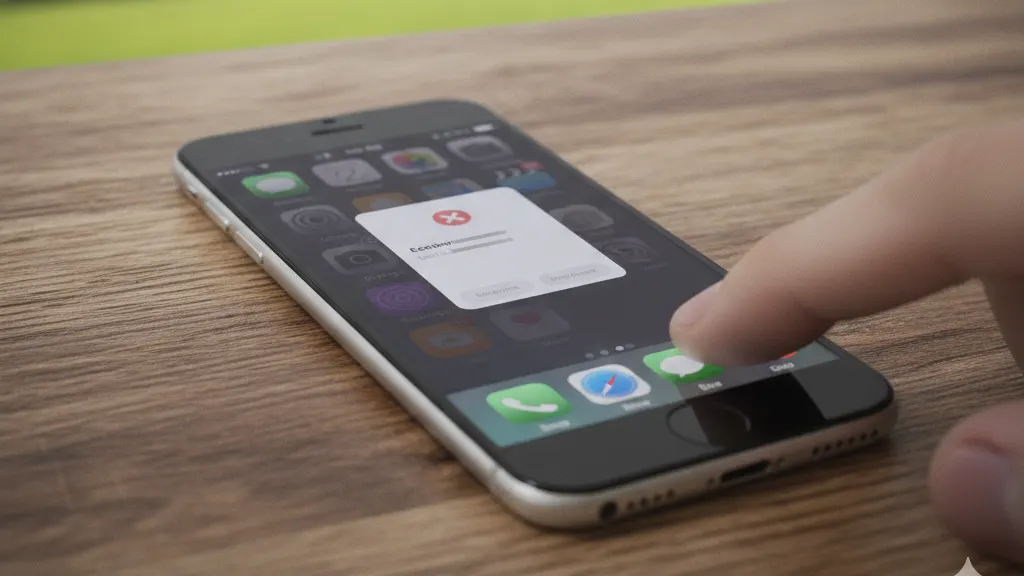
iPhone apps not opening can be frustrating, especially when the app crashes immediately or refuses to launch at all. In most cases, this issue is caused by temporary software glitches, outdated apps, or incorrect system settings.
Why iPhone Apps Fail to Open
Apps may not open on iPhone because of:
- Outdated app versions
- Temporary iOS system glitches
- Insufficient available storage
- Corrupted app data
- iOS compatibility issues
How to Fix iPhone Apps Not Opening
Step 1: Restart Your iPhone
A simple restart can fix many temporary issues.
- Press and hold the Side button and Volume button
- Slide to power off
- Turn your iPhone back on after 30 seconds
Step 2: Update the App
- Open the App Store
- Tap your profile icon
- Update the affected app
Developers frequently release fixes for app crashes.
Step 3: Update iOS
- Go to Settings → General → Software Update
- Install the latest iOS version
Step 4: Check Available Storage
- Open Settings → General → iPhone Storage
- Ensure at least 5–10% free space
Low storage can prevent apps from launching properly.
Step 5: Delete and Reinstall the App
- Press and hold the app icon
- Select Remove App → Delete App
- Reinstall the app from the App Store
This clears corrupted app data.
Step 6: Reset All Settings
If multiple apps are affected:
- Go to Settings → General → Transfer or Reset iPhone
- Select Reset → Reset All Settings
This will not delete personal data.
Frequently Asked Questions
Why do apps crash immediately after opening?
This usually happens due to compatibility issues or corrupted app files.
Will deleting an app remove my data?
Some app data may be lost unless it is backed up or cloud-synced.
Should I reset my iPhone to fix app issues?
Resetting settings is safe, but a full reset should be the last option.
Conclusion
Most iPhone app issues are easy to fix by restarting your device, updating apps, and keeping iOS up to date. Follow the steps above before considering advanced solutions.
For more solutions, explore our iPhone troubleshooting guide.
Leave a Reply
You must be logged in to post a comment.