
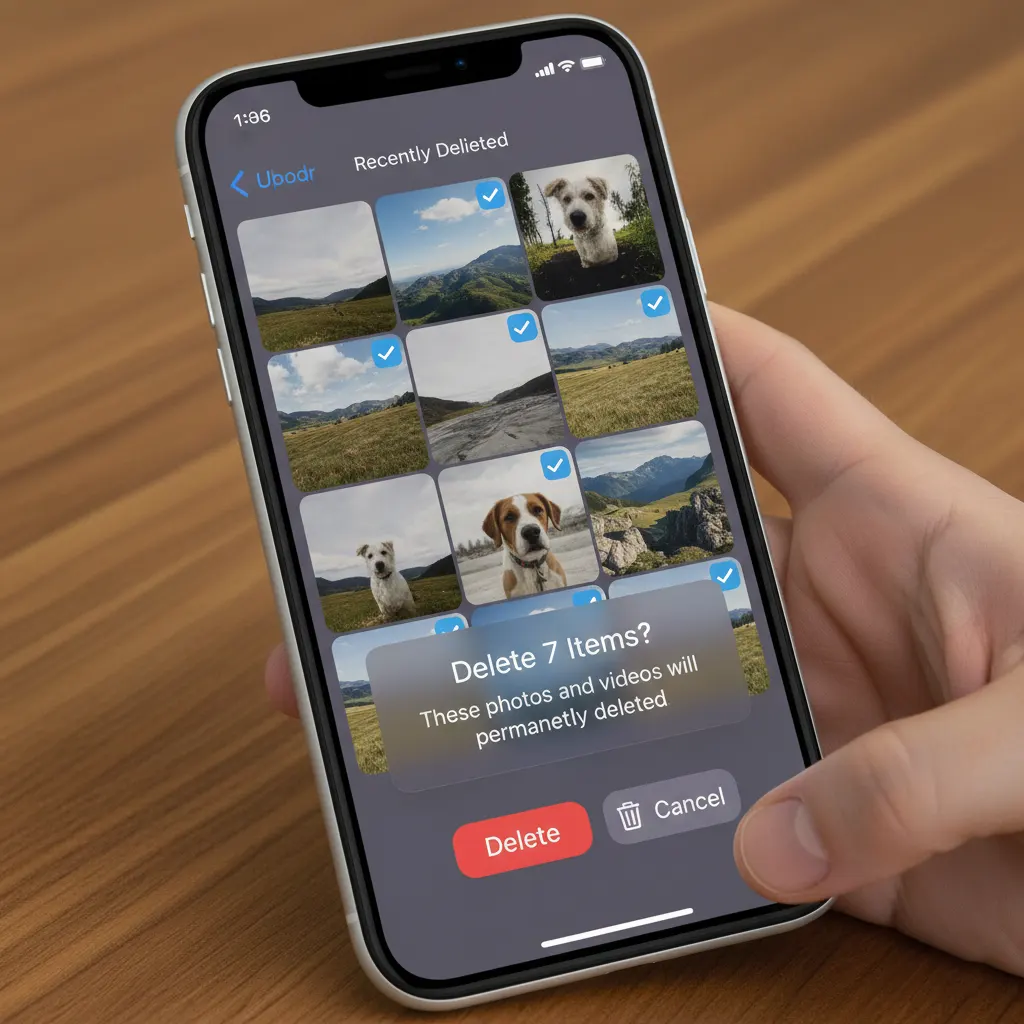
Running out of storage on your iPhone can be frustrating, especially when you don’t want to delete photos or videos. Fortunately, there are several safe ways to free up storage without losing your personal memories.
Why iPhone Storage Fills Up So Quickly
iPhone storage is often consumed by:
- System data and cache files
- Large app sizes and app data
- Downloaded media and messages
- Unused apps running in the background
Understanding what takes up space helps you clean it up effectively.
How to Free Up Storage on iPhone Without Deleting Photos
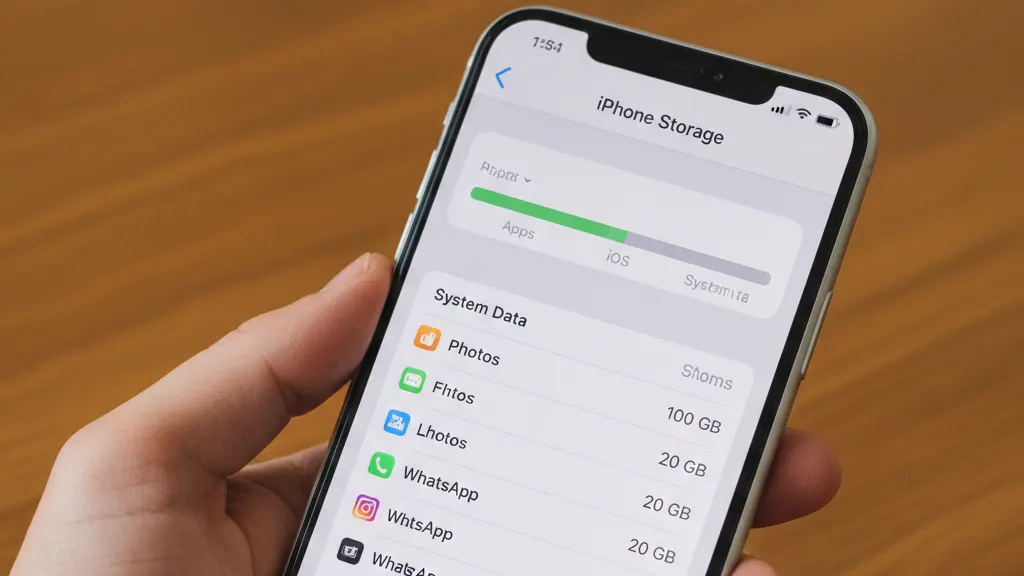
Step 1: Check iPhone Storage Breakdown
- Open Settings
- Tap General → iPhone Storage
- Review which apps and data are using the most space
Step 2: Enable Offload Unused Apps
- Go to Settings → General → iPhone Storage
- Enable Offload Unused Apps
This removes apps you don’t use while keeping their data.
Step 3: Clear Safari Cache and Website Data
- Open Settings → Safari
- Tap Clear History and Website Data
This can free up a surprising amount of space.
Step 4: Remove Old Messages and Attachments
- Go to Settings → Messages
- Set Message History to 30 Days or 1 Year
Large attachments in messages often consume significant storage.
Step 5: Restart Your iPhone
Restarting your iPhone can help clear temporary system cache and free up space.
Additional Storage-Saving Tips
- Delete downloaded podcasts or videos you’ve already watched
- Remove unused apps manually
- Update iOS to the latest version
- Use iCloud for backups instead of local storage
Frequently Asked Questions
Does deleting apps remove photos?
No. Photos are stored separately in the Photos app unless saved inside an app.
Is system data safe to delete?
System data cannot be deleted directly, but clearing cache and restarting helps reduce it.
Will resetting settings delete my data?
No. Resetting settings does not remove photos or personal files.
Conclusion
You can free up iPhone storage without deleting photos by adjusting settings, clearing cache, and managing apps wisely. These steps help keep your iPhone running smoothly.
For more solutions, explore our iPhone troubleshooting guide.
Leave a Reply
You must be logged in to post a comment.